Growing Your Squad
Managing Posts
In a Squad, posts are essential for sparking discussion and engagement. They provide a space for you and your members to share valuable content and initiate meaningful conversations.
Creating a Post
- Create a New Post: Inside your Squad, click on the "New Post" button.
- Add Content: Write a post from scratch or share links from the daily.dev feed or external sources. Add a title and description to give context to your members.
- Post: Click "Post" to share your content with the Squad.
snippets, and more. :::
Sharing Posts from the Feed
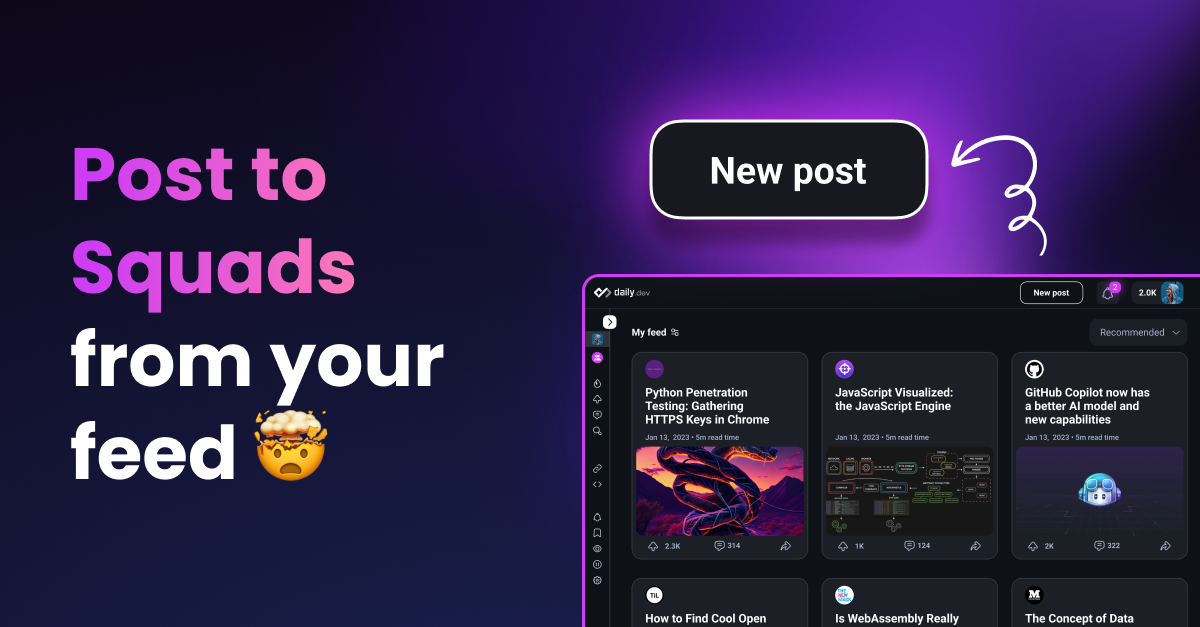
Sharing interesting posts from the daily.dev feed to your Squad is a great way to spark discussions:
- Navigate to the daily.dev feed.
- Find a post you’d like to share with your Squad.
- Click on the "Share" icon.
- Choose the Squad you want to share the post with.
- Add your commentary and hit "Post."
Squads on the right side of the page. Click the Squad icon to share the post directly. :::
Commenting on a Post
Keep the conversation going by adding comments to posts:
- Select a Post: Click on the post you want to comment on.
- Write a Comment: At the bottom of the post, you’ll find a comment box. Share your thoughts, questions, or insights.
- Post Your Comment: Click "Post Comment" to add your input to the discussion.
By actively creating posts and engaging in discussions, you can cultivate an active and vibrant community in your Squad.
Inviting People to Your Squad
Building your Squad starts with inviting other developers to join:
- Access Your Squad: Navigate to your Squad from the left sidebar.
- Invite Developers: Click the "Copy invitation link" button to copy your invitation link.
- Send Invitations: Share your invitation link via email, messaging apps, or social media.
community. :::
The New Squads Directory
Public Squads are now automatically added to the Squads Directory, a curated space where developers can discover communities that align with their interests.
Categories in the Directory
When creating a Public Squad, you must select a category that fits your Squad's theme. Categories include:
- Featured: Editor’s choice for top Squads on the platform.
- Languages: Programming language-specific communities.
- Web, Mobile, DevOps & Cloud, AI, Games: Development-focused categories.
- DevTools: Squads by or for developer tools companies.
- Career: Topics around career growth, leadership, and skills development.
- Open Source, DevRel, Fun: Specialized communities for unique developer interests.
Tips for Gaining Visibility in the Directory
To improve your chances of being featured in the directory:
- Optimize Your Metadata: Add an engaging image, clear description, and select the most relevant category.
- Grow Membership: Invite members to join and participate actively.
- Post Consistently: Regular high-quality posts boost engagement and visibility.
Squad analytics
Every Public Squad page now includes an at-a-glance scoreboard so admins, moderators, and members can see how the community is performing without leaving the Squad.
Header stats
The Squad header displays four headline metrics:
- Posts – the total number of posts published in the Squad.
- Views – how many times posts in the Squad have been viewed.
- Upvotes – the total upvotes received across all posts.
- Awards – the total awards given to the Squad. Click the count to open the full list of awards.
These numbers update as your community engages with content, making it easy to track momentum over time.
Top members
Just below the stats, the Squad header surfaces a Top members list of the Squad's most active contributors over the last 30 days. Click any avatar to view that member's profile, or open the full list to see everyone ranked.
Top members are visible on Public Squads. If your Squad is private, the list is not shown.
For a deeper view that includes impressions, upvote ratio, comments, bookmarks, shares, and clicks, open the dedicated Squad analytics page at /squads/[handle]/analytics. This view is available to admins and moderators with analytics access.
Accelerate Growth with Boost
Ready to fast-track your Squad's growth? Boost gives admins and moderators powerful tools to reach more developers and grow faster.
Squad Boost
Promote your entire Squad to attract new members:
- Targeted exposure: Your Squad appears as dedicated cards in the main feed and Squad directory
- Smart targeting: Automatically shown to developers interested in your Squad's topics
- Full control: Set your budget in cores and track new members in real-time
- Requirements: Squad must be public with description, profile image, and cover image
Post Boost
Amplify your Squad's best content:
- Boost Squad posts: Promote high-quality posts from your Squad to reach more developers
- Increase engagement: Get more views, upvotes, and comments on important content
- Cross-promotion: Boosted Squad posts can attract users to join your community
your best content. Members can also support your Squad by giving Awards, which transfer cores directly to admins and moderators for future boosts. :::
Ready to boost? Visit your Squad page and click "Boost" or learn more in our Boost documentation.
Building an Engaged Community
An active Squad is key to growth. By regularly posting, approving member contributions, and sparking discussions, your Squad can become a vibrant hub for developers.
To measure how your Squad is performing, use Post and Squad Analytics.
For additional support, contact our team at support@daily.dev.